 KeySplera
A little feedback for every press.
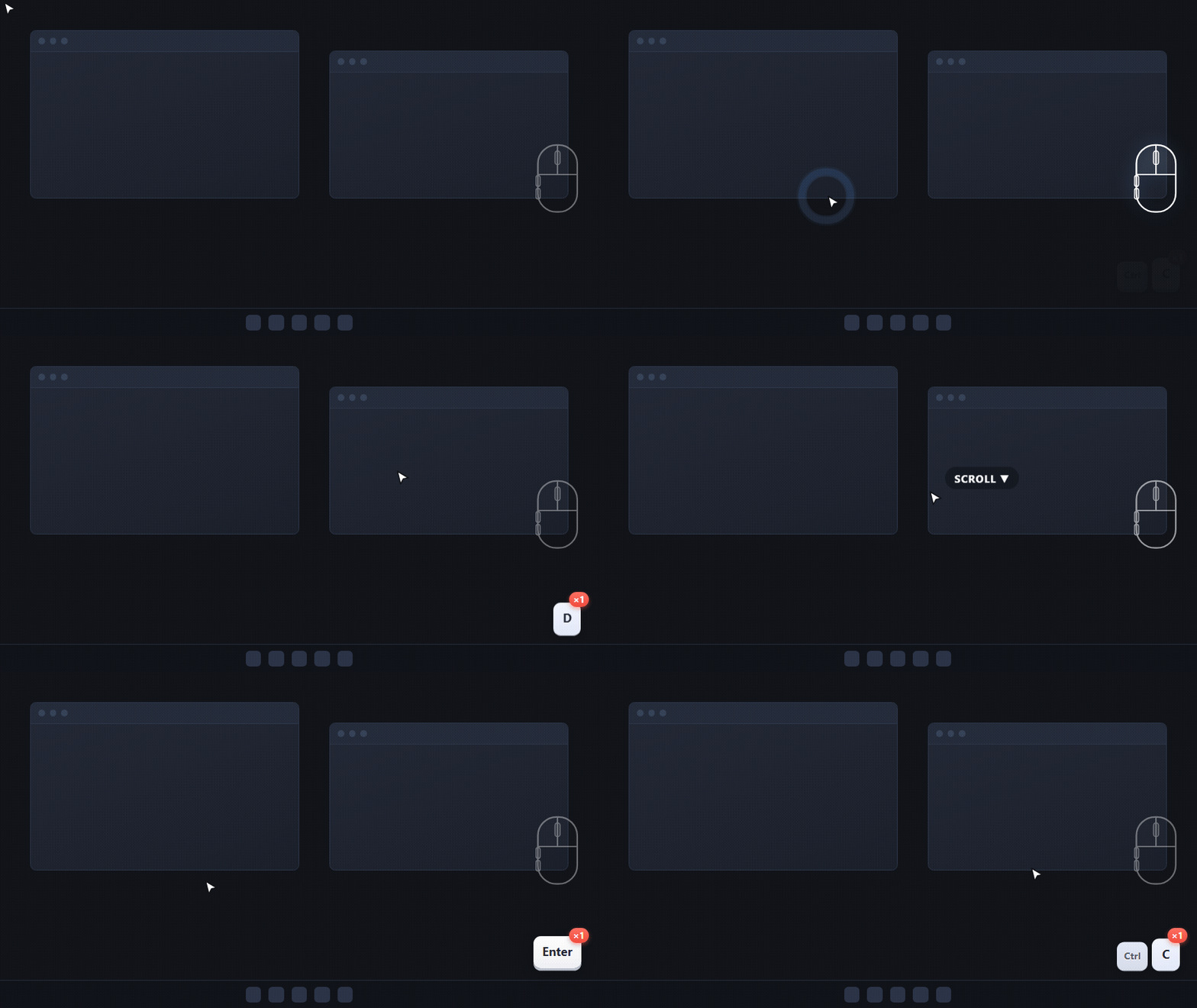
Keycaps sink on press, bounce back on release, then fade. Repeated presses get a ×N badge, and combinations stay together.
MAKE YOUR INPUT PART OF THE PICTURE
Give your audience the missing half of the demo. Show keys, mouse buttons and click ripples right on screen, while you work as usual.
v0.1.0 · Windows 10 / 11 · x64
Keyboard and mouse overlay for Windows
Made for focused work ↗A WORKFLOW, THOUGHT THROUGH
A shortcut makes sense when viewers can see the keys. A click is easier to follow when it leaves a visual cue.
Keycaps sink on press, bounce back on release, then fade. Repeated presses get a ×N badge, and combinations stay together.
Choose from five US keyboard layouts: 104, 87 TKL, 75, 68 (65%) and 61 (60%). Pressed keys light up in the wireframe.
Left is blue, right is red, middle is amber, and side buttons are purple. Ripples mark the click position; a capsule shows wheel direction.
The transparent, always-on-top overlay spans the virtual desktop, passes clicks through and does not take focus. Tune its elements from the tray.
A LITTLE HANDS-ON
A browser illustration. Focus the field and press a key, or try a colored button.
GET INTO YOUR FLOW
Download the Windows x64 installer. Launch KeySplera and find its icon in the system tray.
Open Settings from the tray. Adjust size, opacity, visibility and position for the elements you need.
Type and click as usual. Check your recorder’s preview to confirm the overlay is included.
SEE THE FEEDBACK

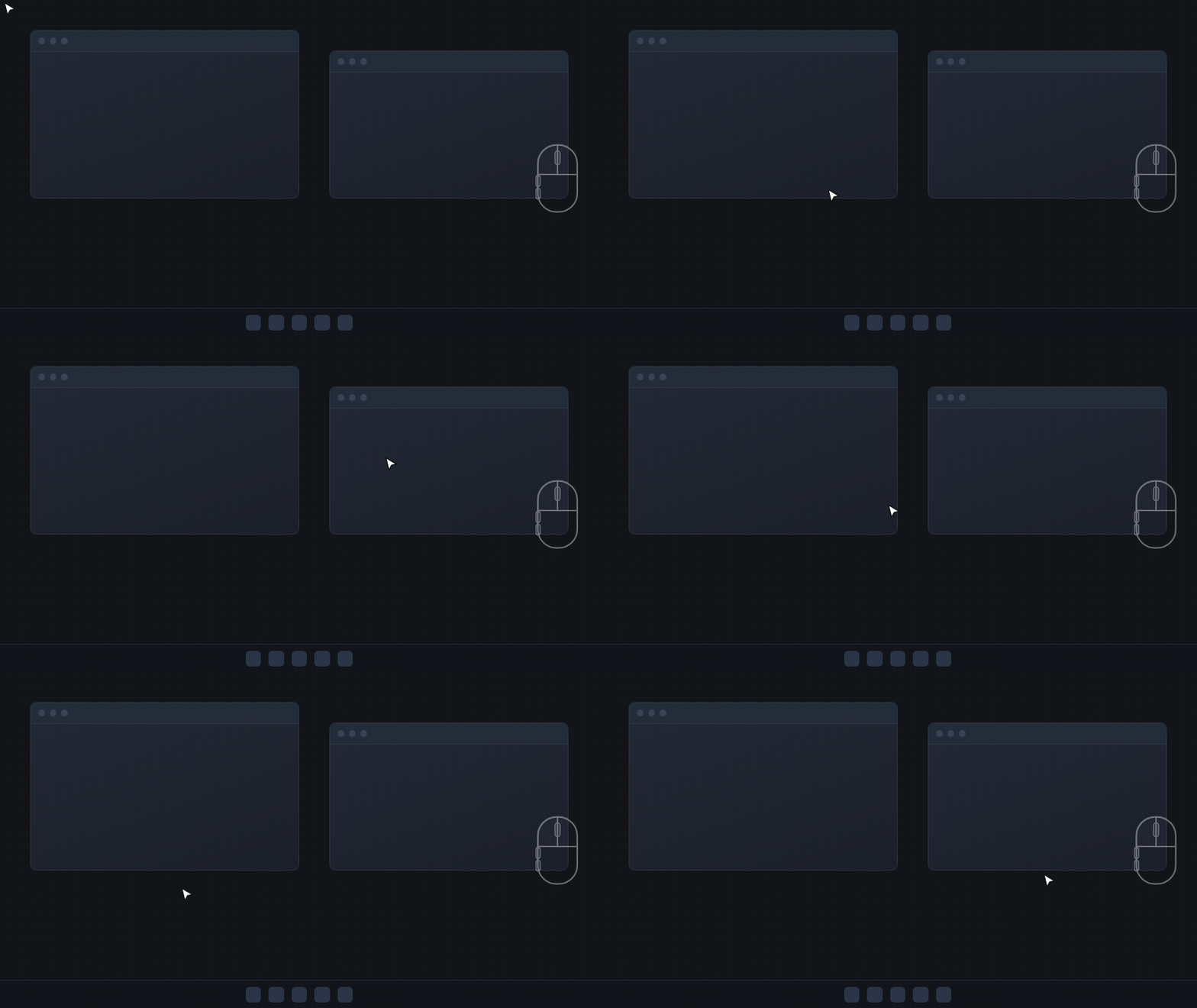
The overlay is click-through and does not take focus. Input continues to reach the application underneath.
Yes. Five US layouts are documented: 104, 87 TKL, 75, 68 (65%) and 61 (60%). Fn is drawn on compact layouts, but firmware handles that key so it cannot light up.
Windows can prevent a non-elevated process from observing input in elevated windows. KeySplera needs matching administrator privileges for that case.